The screenshots use an example client and test data. Saving an API key does not confirm that it works. The connection check happens after the account is created.
1. Add your client
Open Clients and choose Add client. Enter the project or client name.- Guide me through it adds goal-based settings for Spot Market Making.
- I will run it myself opens the usual bot settings.
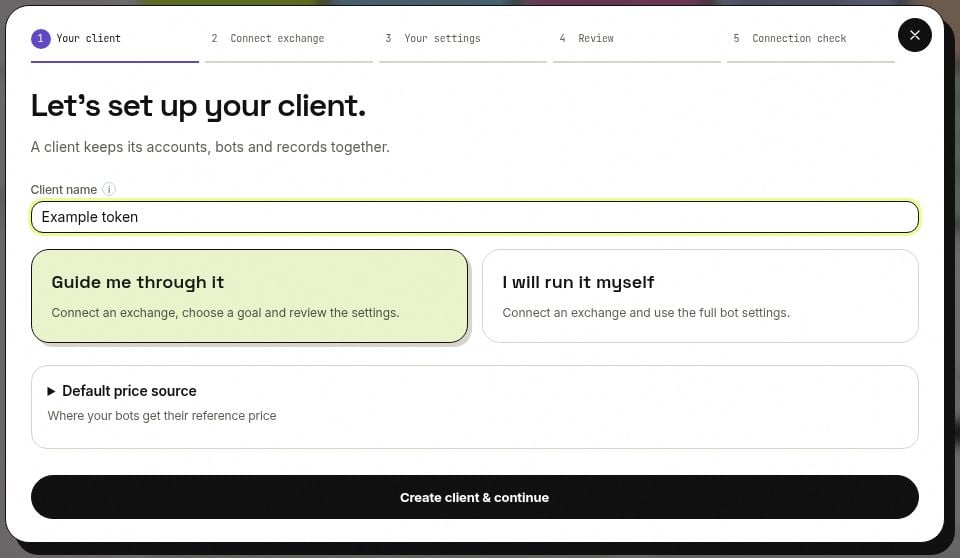
Choose how much help you want. Both paths use the same account and bot settings.
2. Connect an exchange
Choose a key already saved for this client, or select Add API key.1
Open the exchange's API settings
Choose the exchange in ANSIO, then use the Open API settings link. It opens in a new tab.
2
Choose permissions
Enable account reading and trading for the market you intend to use: Spot or Futures. Leave withdrawals and transfers off. Permission names differ between exchanges.
3
Restrict the key to ANSIO's trading server IPs
Copy the addresses shown in the setup window into the exchange’s IP whitelist.If the window says the list is unavailable, request the addresses from ops@ansio.trade before saving the exchange key. Your own IP and the IP behind the ANSIO website are not substitutes for the trading server addresses.
4
Save the key in ANSIO
Paste the API key, secret and any additional field requested for that exchange. Give the connection a name you will recognise, then select Save key.Keep the secret out of chat messages and support screenshots.
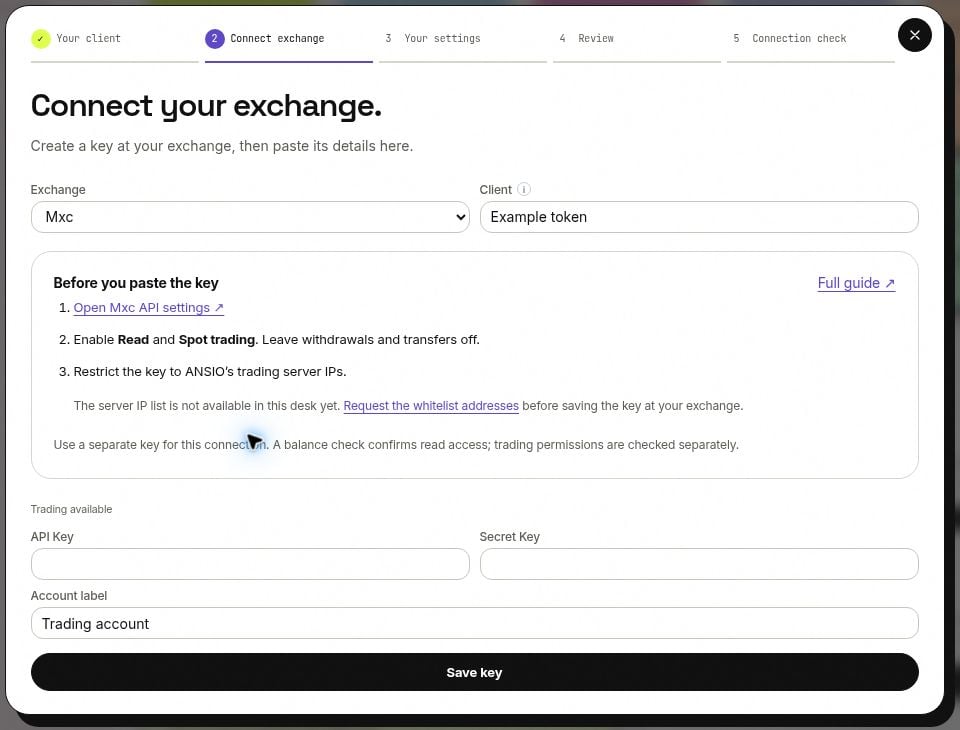
The exchange link, permissions and IP instructions sit above the credential fields.
3. Choose the pair and settings
Choose the market, exchange, API key, base coin and quote currency. For example,TEST/USDT uses TEST as the base coin and USDT as the quote currency.
Guided Spot Market Making
The guided path offers two starting points:Keep both sides quoted
Places bid and ask levels using a selected share of each available balance.
Support a depth zone
Adds Depth Support with a target on each side inside your chosen price zone.
For example, a depth target of 300 USDT per side within ±2% asks Depth Support to work towards that amount on each side in that zone. Available funds, the pair’s minimum order size and exchange precision still limit what can be placed.
Choose Apply to MM settings to put the values into the actual bot form. Open Full settings to inspect or change them. Review also applies a changed preset if you have not applied it yet.
These are starting settings, not a forecast of returns. The preset does not replace the native risk controls. Review the balance limits and what the bot should do when a limit is reached.
Manual setup and Futures
The manual path keeps the normal strategy fields. Choose the strategies you need and fill in their settings. The guided presets above apply only to Spot Market Making. Futures uses its own settings; the wizard does not apply the Spot preset to it. See Futures quoting.4. Review before creating
Select Review setup. The review shows the client, exchange, pair, strategy, price source and main settings. Expand All settings to save for the full list. Use Back to settings to change anything. Your entries remain in the form.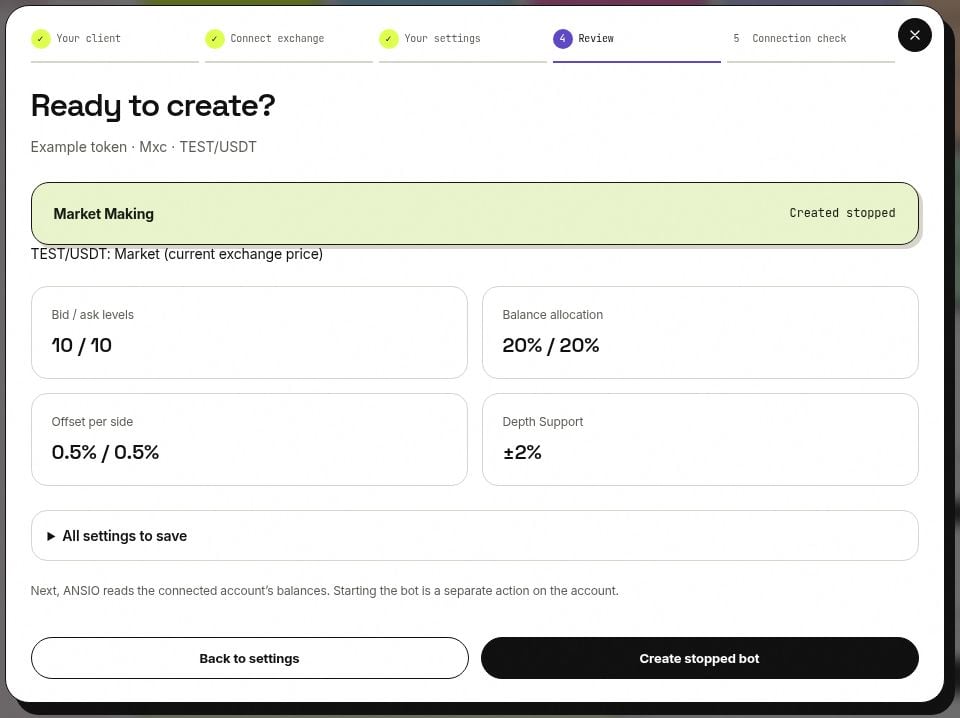
Review the actual values that will be saved. Creating the bot does not start it.
5. Read the connection result
ANSIO now asks the trading system for a fresh balance snapshot for the new account. The result shows the base and quote balances, including available and locked amounts, and the snapshot time. A stale or missing result is not shown as a successful connection. Use Check balances after correcting a connection issue. A balance check confirms that account data can be read. It does not prove that order placement is permitted. The separate Test transaction action on the API Keys page can place an order and may result in a fill; the setup wizard does not run it automatically. Open the account to inspect its settings and balances. Starting the bot is a separate action.If a step needs attention
More help: Connection problems and API access.